How to manage content layouts#
This guide covers the various ways to manage and register content layouts in Plone Mosaic.
Managing layouts through the web#
Mosaic provides a dedicated interface for managing layouts globally.
Navigate to
@@layouts-editorin your Plone site.Use the interface to edit HTML, manifest settings, or toggle visibility of existing layouts.
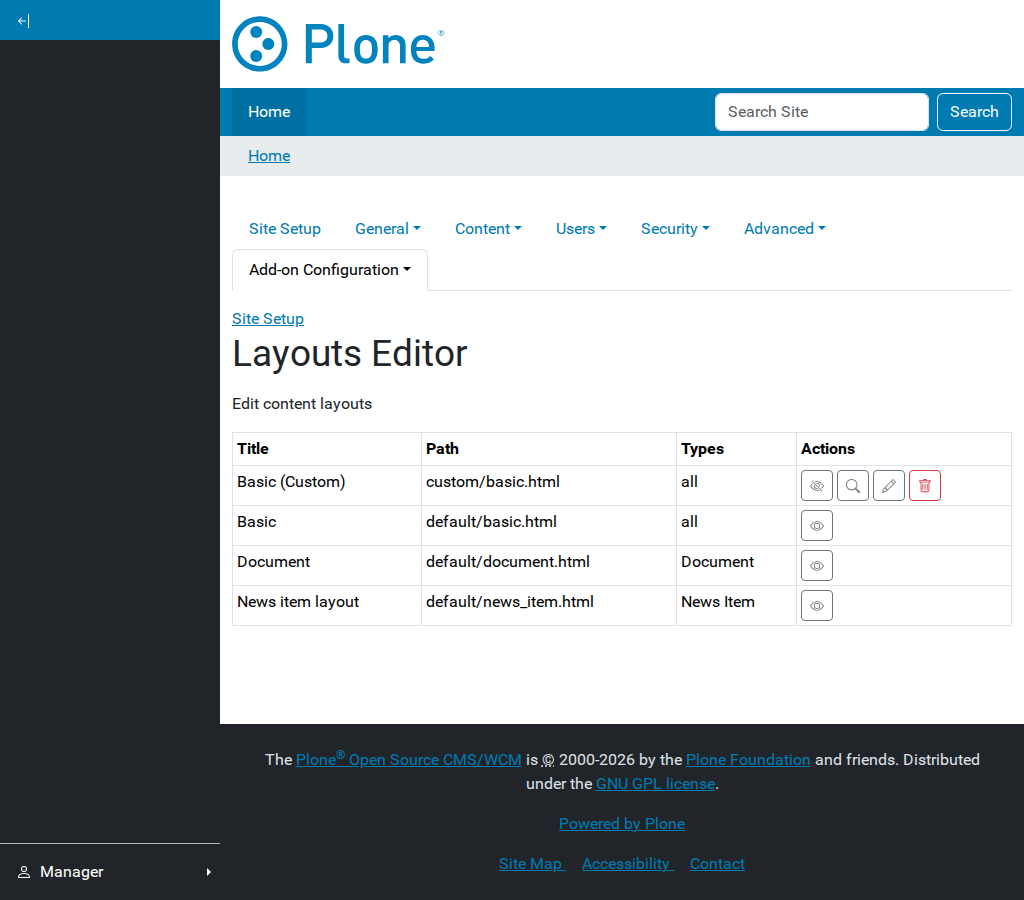
The Layout Editor interface.#
Registering layouts in a package#
To include predefined layouts in your add-on:
Create a directory for your layouts (e.g.,
src/my/package/layouts/).Add an HTML file for the layout structure.
Add a
manifest.cfgfile to define the metadata.
For detailed information on the manifest syntax and tile classes, see the Layout configuration reference.
Example manifest.cfg snippet:
[contentlayout]
title = Custom Page
file = custom_page.html
for = Document